(If you were looking for documentation on how to begin a payment plan, please see our guide: Enrolling in a Payment Plan in UIS)
This article will help guide the student in how to add a person that they authorize to access their Tuition statements in order to pay a bill.
Log into your Sign-On Portal: https://signon.stjohns.edu
*If you have not yet set up your account in the Sign-On portal, please see our guide for further instructions: How do I log in to the Sign-On Okta Portal at signon.stjohns.edu?Click on the UIS application tile

Once logged in, click on the Student Tab. Then, follow the prompts below to navigate to the Payment Plan.
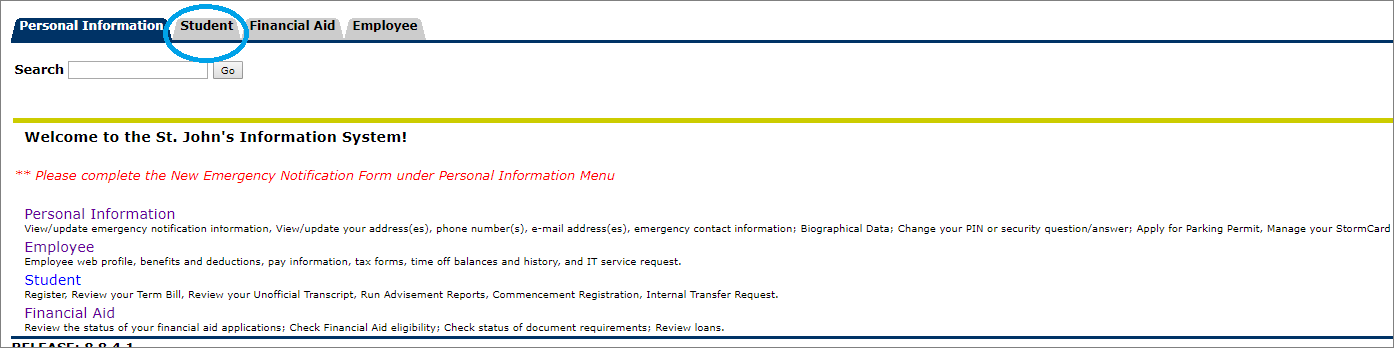
Click Student Accounts.
Select Account Suite.
You will be taken to the Account Suite where you can invite someone to be able to view your eBill, make payments and start payment plans on your behalf.
To the right of the page, click Authorized User.
Enter the email address of the person you would like to provide online access to your eBill.
Once they accept, the Authorized User will be provided a link and separate login to the Account Suite.
Every time a new term eBill is uploaded, the student and the Authorized User will receive email notifications.
If the Authorized User enters the password incorrectly too many times, the account will lock.
Please wait at least 20 minutes, and the account will automatically unlock.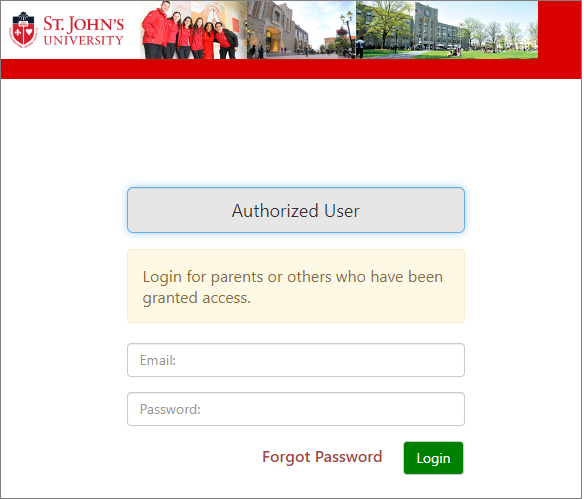
If the Authorized user does not remember the password to the account that was created for them, they can click on the “Forgot Password” link listed under the login screen.
If you have any issues regarding this process, please reach out to Student Financial Services at (718) 990-2000.
Was this article helpful?
That’s Great!
Thank you for your feedback
Sorry! We couldn't be helpful
Thank you for your feedback
Feedback sent
We appreciate your effort and will try to fix the article